 CodeLab
Get a free Gemini API key
CodeLab explains your code with your own AI key. Here is how to get one from Google for free and connect it in Visual Studio.
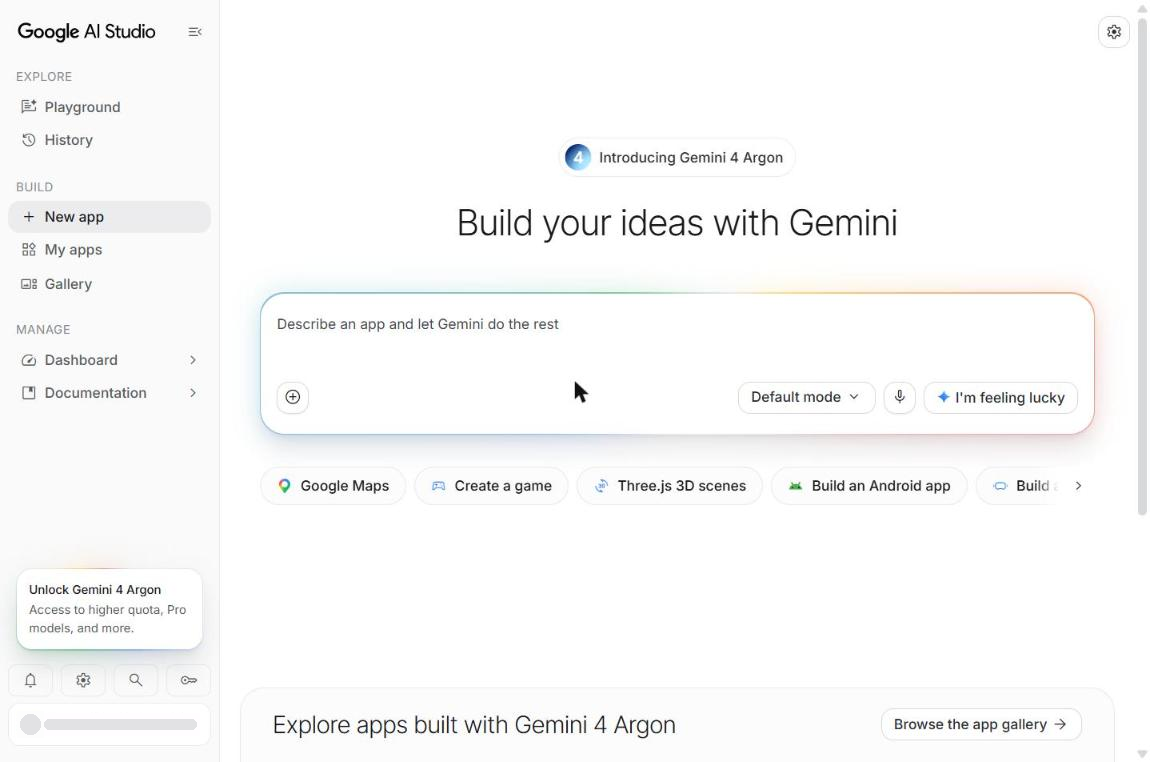
Open Google AI Studio
Go to aistudio.google.com and sign in with your Google account if it asks. Then click the key icon at the bottom left.
Shortcut: open aistudio.google.com/apikey directly. The first time, Google may ask you to accept its terms.
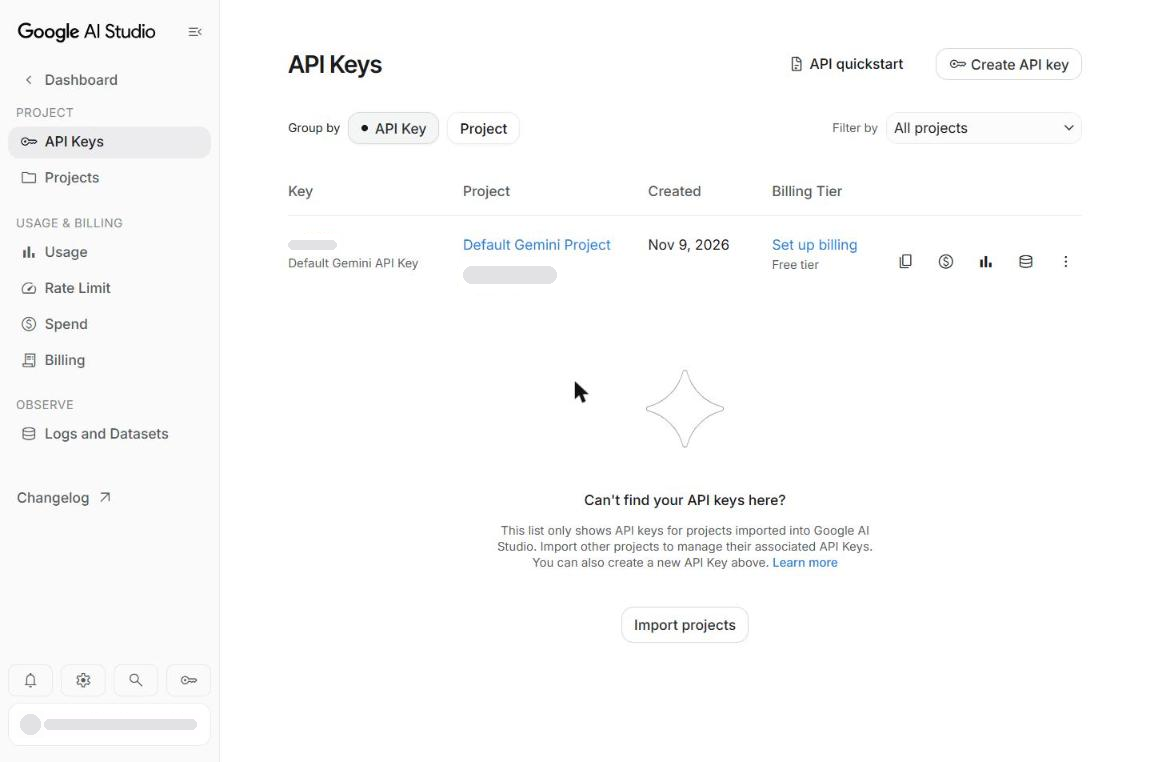
Click Create API key
You are now on the API Keys page. The button is at the top right.
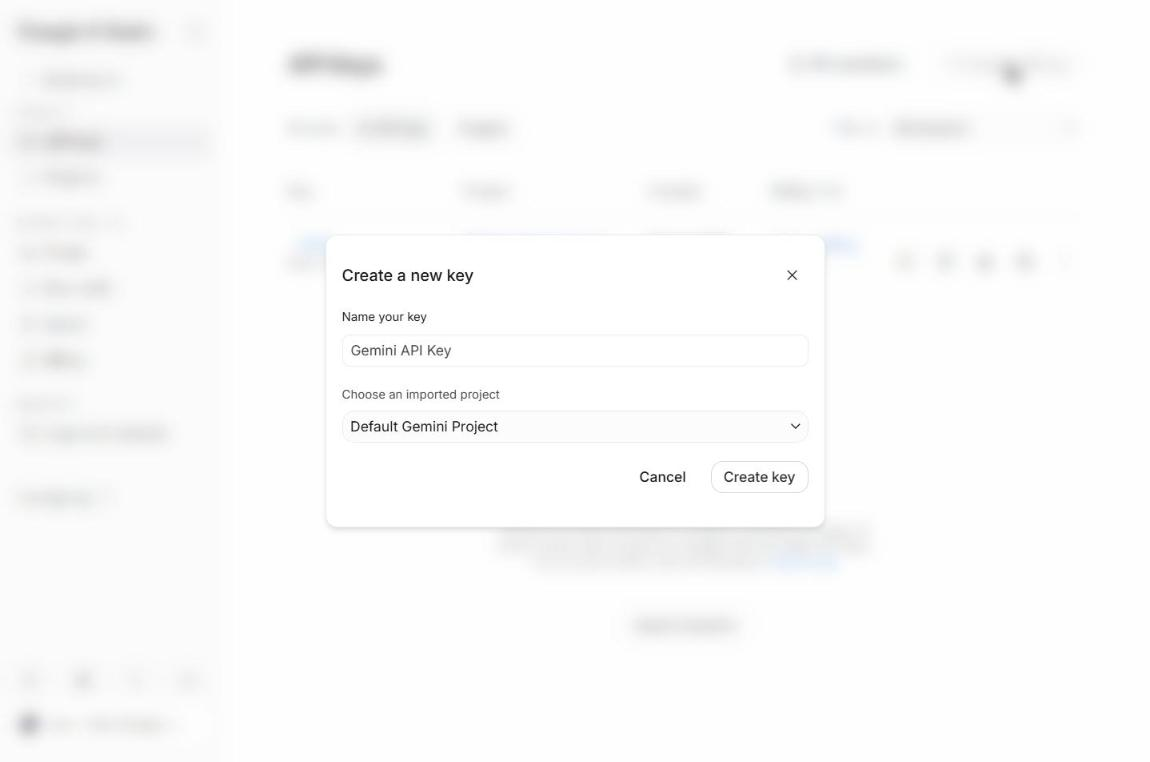
Keep the defaults and click Create key
The name and project are already filled in. You don't need to change anything.
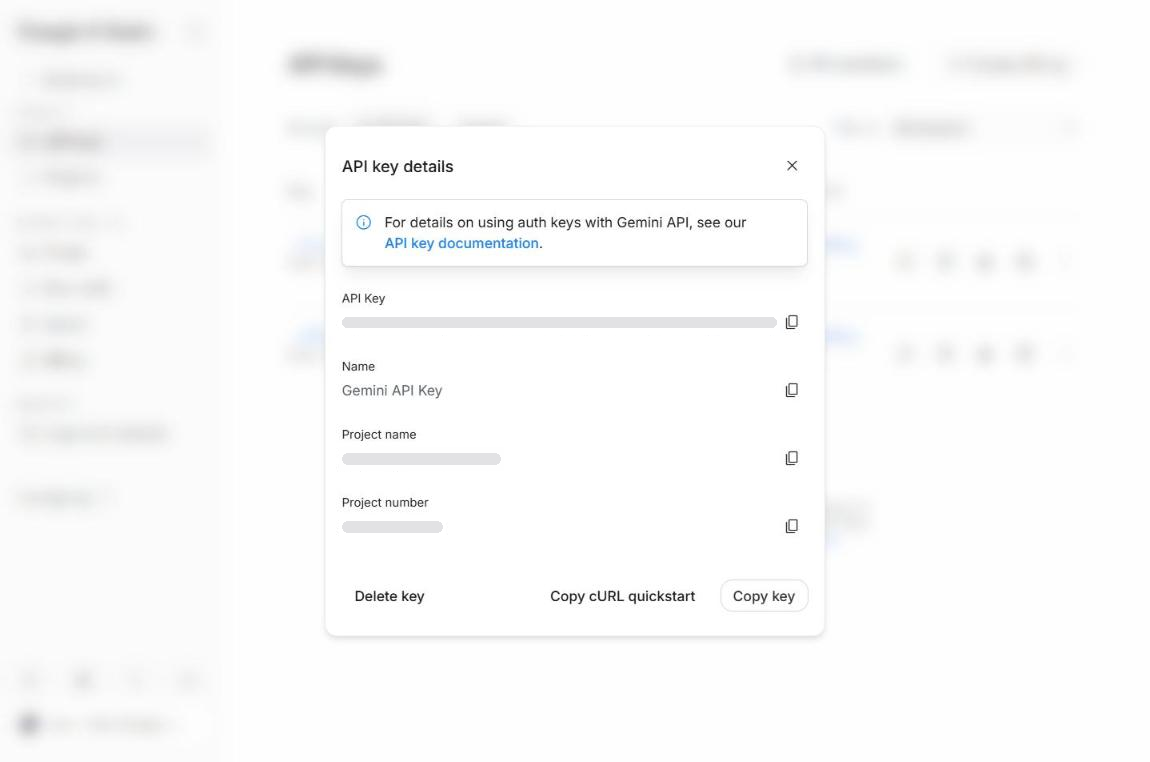
Click Copy key
Your key is now on the clipboard.
Paste it into CodeLab
In Visual Studio open View › Other Windows › CodeLab, then the settings icon. Make sure Gemini is selected, paste the key and click Save.
CodeLab tests the key right away and shows Key works. The key is stored in Windows Credential Manager on your PC only.
429, wait a little or switch to a lighter model in settings. On the free tier, Google may use prompts to improve its products. OA
You're ready.
Save a file in Visual Studio and watch your first lesson appear.
Don't have CodeLab yet? Install it from the Marketplace.
Made with care by Dr. Omar Aburub.